Docs
/
Webhooks & Alerts
/
Slack Block Kit Digests
Slack Block Kit Digests
Deliver rich, interactive threat notifications directly into your team's Slack channels using Slack's Block Kit UI framework.
1. Slack Webhook Setup
To receive security event digests in your Slack channels, configure a Slack Incoming Webhook:
- Go to the Slack API Portal and create a new App in your workspace.
- Enable Incoming Webhooks and click Add New Webhook to Workspace.
- Select your preferred alert channel (e.g. `#security-alerts` or `#ops-telemetry`) and copy the generated Webhook URL (`https://hooks.slack.com/services/...`).
- In Sprint Log Parser, visit Workspace Settings > Alert Channels and paste your Webhook URL.
2. Block Kit Layout
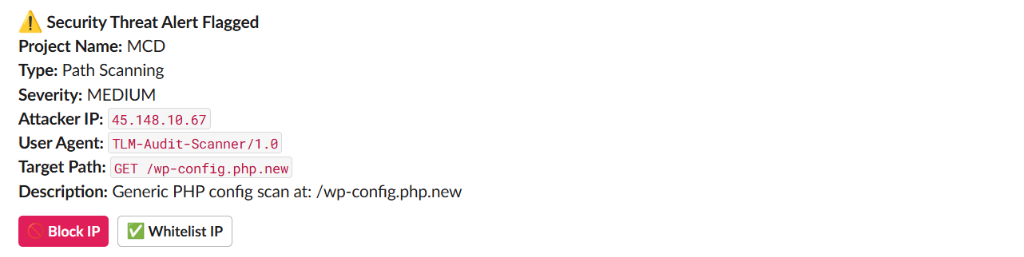
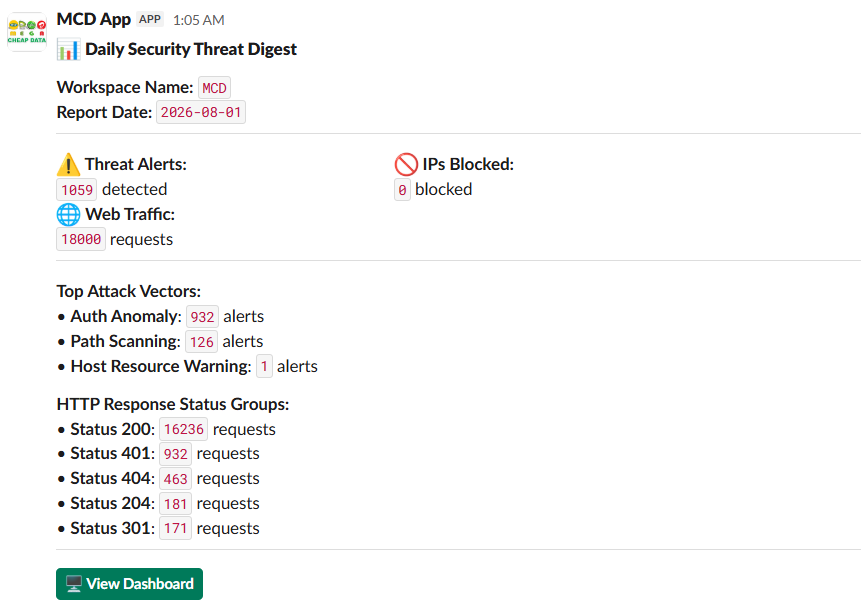
Alert notifications are rendered using Slack's structured Block Kit UI, presenting clear visual hierarchy and interactive response buttons for incident triage:
Instant Security Threat Alert
Daily Security Threat Digest
3. Instant vs Digest Mode
You can customize how frequently Slack notifications are dispatched:
- Instant Alerts: Immediately dispatches a Block Kit card whenever a `CRITICAL` or `HIGH` severity threat is detected.
- Hourly Threat Digest: Batches all warning anomalies and low-level scanner hits into a single hourly summary table to reduce notification fatigue.
- Daily Security Briefing: Delivers a daily executive summary report highlighting top attacking ASNs, total blocked requests, and system uptime.